Teaching
- Observations
- Board Work
- Classroom Seating
- Trinity GESE Exams
- Student Feedback
- Student Academic Management (Teachers)
Observations
Teachers will have a full lesson observation near the beginning of their time with ANGLO with the possibility of a drop-in observation later in the course.
Full Observations
Procedure
-
TM produces a Lesson Observation Rota at least 3 days before the first full observation and makes it available to the all teaching staff.
-
TM organises a pre-observation team meeting to briefly discuss the observation checklist. Teachers can suggest areas of their teaching on which they would like specific feedback.
- The obversations take place.
-
TM writes up the observation feedback report.
-
TM follows up the observation with a brief discussion with the teacher within two working days from the observation, then completes and emails a final Teacher Observation Report to teacher and HO within 5 working days.
Observation Checklist
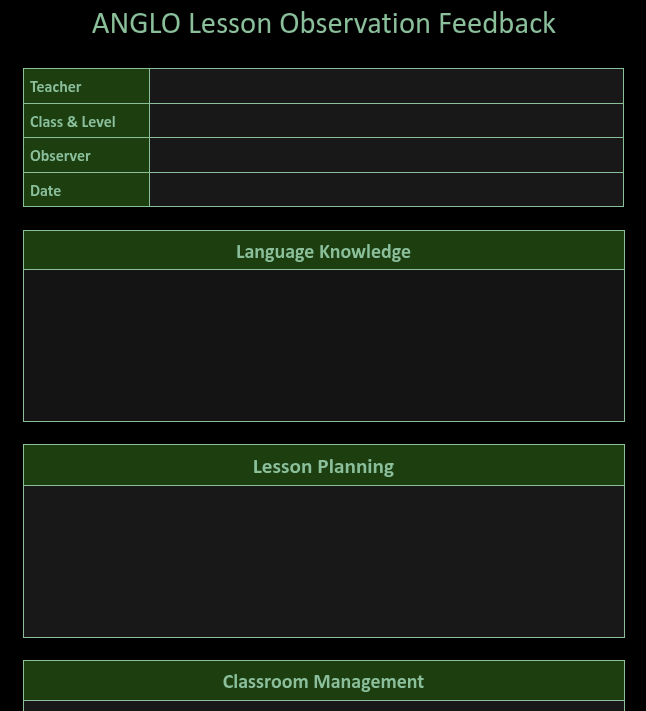
An ANGLO Teacher Observation Checklist is completed by the TM for each full observation.
Lesson Observation Feedback Form
Drop-in Observations
Drop-in observations are informal lesson observations. Drop-in observations take place whenever the TM deems them necessary - the TM tells teachers in advance that a drop-in observation is happening.
After a drop-in observation the TM may direct teachers to the Teacher Knowledge Bank if further support is required.
Board Work
Teachers must make sure there board work is always tidy and useful for the students.
Essentials of board work:
-
Lesson outcomes: what will students have learned or improved by the end of your lesson?
Teachers should explain these to their students at the beginning of the lesson, refer to them during the class then review/reflect at the end of the lesson. Learning outcomes for each lesson are listed on the first slide.
-
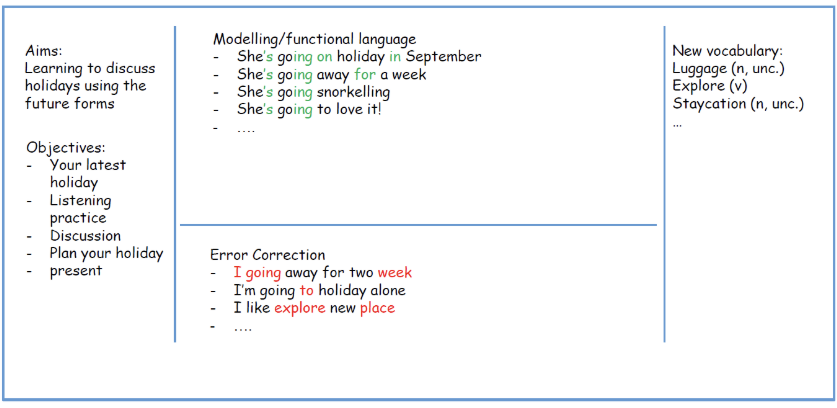
Language models: clear examples of functional language, with important language elements/patterns highlighted
-
New vocabulary: with parts of speech (n, v, adj, etc.), and highlighted pronunciation (stress, important phonemes)
-
Error correction
We recommend dividing the board into clear sections, and using colours consistently throughout the course. For example: black or blue for main text, green for highlighting important language elements or patterns, and red for error correction. See below board plan:
There's more info on Board Work on the Teaching Hub's Teacher's Knowledge Bank
Classroom Seating
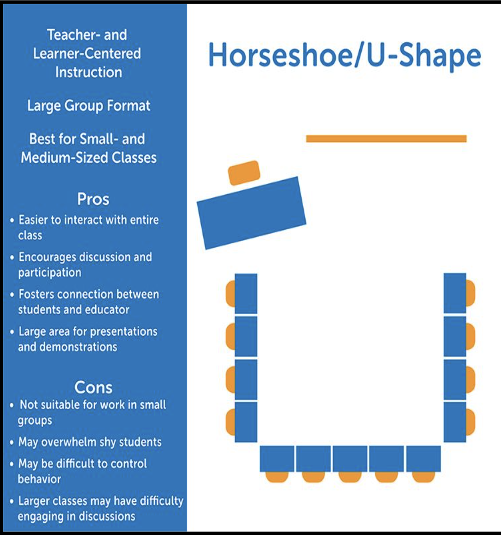
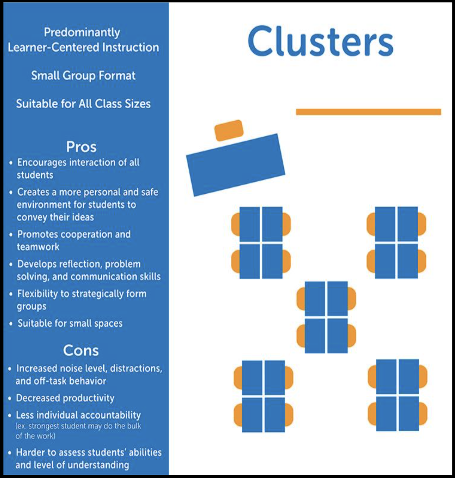
In order to create the most effective learning environment for students it is important to consider seating arrangements in the classroom. Below are two possible classroom seating layouts and the types of teaching activity they work best with:
Trinity GESE Exams
Some ANGLO students opt to sit their spoken Trinity exams during their ANGLO programme.
Teachers typically have little interaction in this process (it is handled principally by the management team).
The Trinity Exam Process is detailed on the Teaching Hub
Student Feedback
ANGLO collects student feedback on Programme Day 3 and at the end of the course (Course Day 7 for 13-night programmes, Course Day 8 for 14-night programmes). Day 3 feedback is used to see how students are settling in and to identify any problems they might so that these can be resolved as soon as possible.
End of Course feedback is used to assess satisfaction throughout the programme and the results are used to make changes (where necessary and appropriate) for subsequent student intakes.
Student feedback forms are completed in the classroom with the teacher helping students to locate the form and assisting with any comprehension difficulties.
Procedure for Collecting Student Feedback
- On a feedback day, teachers should bring QR code posters to their classroom (these are available in the Teaching Office from the Teaching Manager)
- Teachers ask students to scan the QR codes on students' own devices
- Students complete the form individually and submit their answers
Students need to complete their own form on their own device. This is important so that every student has the opportunity to give feedback
Student Academic Management (Teachers)
Attendance, Evaluation & Reports Guide
Teachers: Filling in attendance and evaluating your students
ANGLO uses the name SAM for the documents that are used for Student Academic Management
This guide explains how to use the ‘Student Academic Management’ (SAM) Google Sheet, a link to which your Teaching Manager will send you. This document is used to record your students’ attendance, evaluation, and class profile in one single place.
🔎 Overview of the SAM document
Your Teaching Manager will send you a link to a SAM Google Sheet for each course you will teach: one document for group A and one document for group B for each student intake. You can easily identify this information from the title of the document, for example:🔴 Group A Turn 1 SAM
Or🟢 Group B Turn 2 SAM
⚙️ DASH
When you open the document, you should see the ‘⚙️ DASH’ sheet. Click to view it.
Here you will see the names of the various classes, the level of course material the class will follow, and the name of the teacher assigned to each class. You will also see a classroom assignment* and a link to this document should you need to read it again.
*It is possible that classrooms have not been assigned when you first receive the link to the document. Consult your Manager.

In the example above there are groups: each one has a level, a teacher, a classroom, number of students and the age range of the students.
Class Sheet: Class Info
You can easily identify the name of the group assigned to you. Locate your sheet at the bottom of the document. It will have the group’s name on it (in this example we are using Josh who is teaching Austen group). Click to select it:

You'll find the main information about the class in the top left:
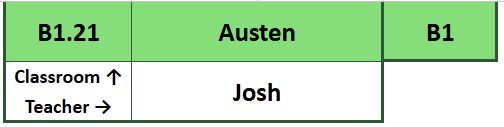
Here you can see confirmation of the classroom (B1.21), group name (Austen), level (B1), group B (the green colour), and the teacher (Josh).
Class Sheet: Student Info
Your students are located in rows 7 to 26 (depending on the number of students in your class*)
*The maximum number of students is 15 (there is space in the register for 20. This is in case students are moved from one class to another. More on this below)
For each student in your class you have their full name, group/group leader name, nationality, ID, age, level and departure date.

Since the Student Academic Management document covers 4 aspects of student management, convenient links are also placed in a prominent location. Simply hover, and click the link to be taken to the part of the sheet you are looking for.

We'll delve into more detail on each of these 4 items in the next sections.
🙋♂️ Attendance
ℹ️ Click on the ‘🔗 Attendance’ to jump across to the 🙋♂️ Attendance section.
Alternative, scrolling to the right, the first section next to your students' names is the Attendance section.
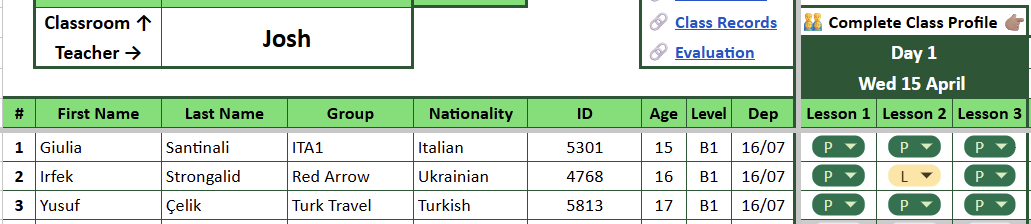
For each day of the course you need to complete the attendance for each of the 3 lessons.
Fill in the attendance for each learning session with a 'P' for present, a 'L' for late or an 'A' for absent. Inform your TM 10 minutes into class if you have any absent students.

Inform your TM 10 minutes after the class begins if you have any absent students
Each day is marked with the date, and any other tasks to be completed on that day. In the example below, today is Wednesday 15th April and the attendance for that day needs to be taken, as well as completing the Class Profile.
👨👨👦👦 Class Profile
ℹ️ Click on the ‘🔗 Class Profile’ to jump across to the 👨👨👦👦 Class Profile section.
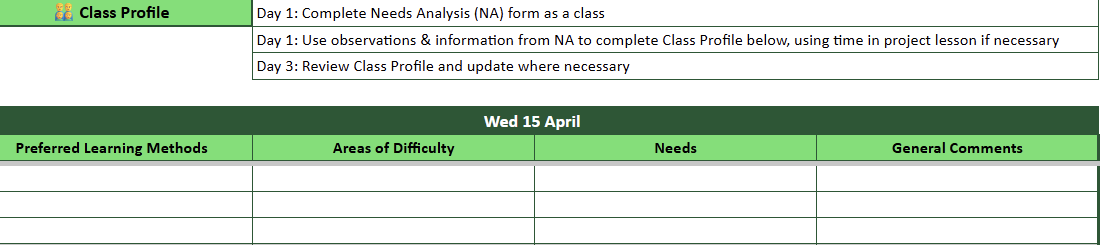
The Class Profile needs to be completed on Day 1, using the Needs Analysis and your own observations. It needs to be reviewed on Day 3 (and changed if necessary).
📝 Class Records
ℹ️ Click on the ‘🔗 Class Records’ to jump across to the 📝 Class Records section.
At the end of the 3rd lesson each day, fill in the Class Records (rows 29-32) with information about what you have covered in class.
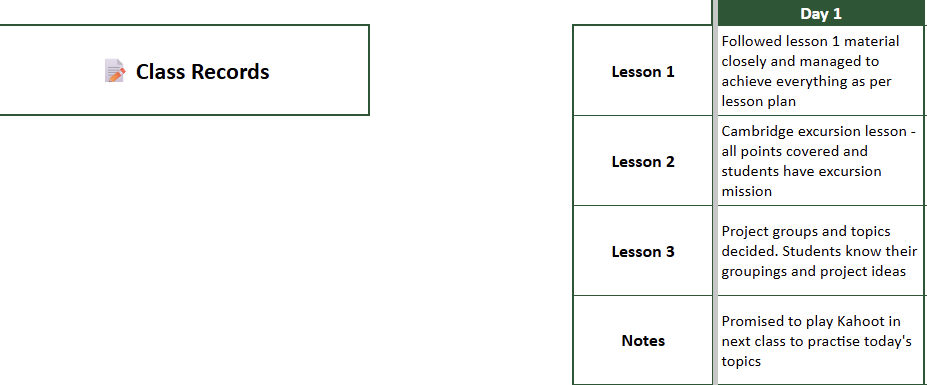
Class Records are a great reminder for yourself and are really beneficial if another teacher has to cover your class
📋 Evaluation
ℹ️ Click on the ‘🔗 Evaluation’ to jump across to the 📋 Evaluation section.
On day 4 and day 8, complete the progress report for your class.
Enter the test result out of 10, then assign Excellent, Good or Needs Improvement for each of the areas indicated. Finally, leave your comments.
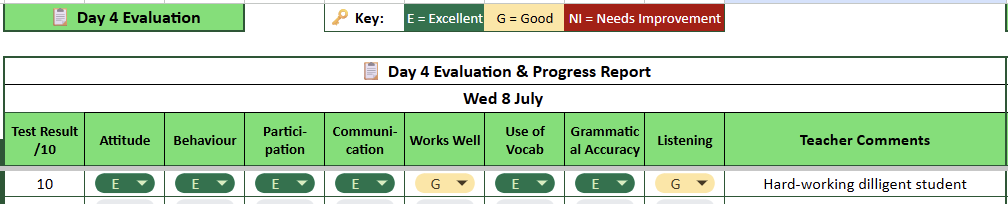
The image above shows the Day 4 Evaluation section but the Day 8 one is identical.
The cell space for leaving comments is really small. TIP: Select the comments cell with your mouse, then type in the formula bar towards the top of the screen.
📜 Certificate Grades
On Day 5 the SAM will indicate to you that it's time to indicate students' certificate grades
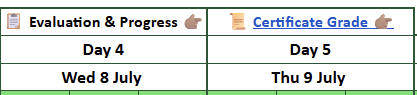
Click the Certificate Grade link or scroll to the right side of the SAM.
Enter P (Pass), M (Merit), D (Distinction) for each student.
TIP: When a Certificate Grade cell is selected, press Return on your keyboard. You can then use the arrow keys to select P, M or D. Press Return again to make the selection and automatically move to the cell (student) below,
🆘 Help! (FAQs)
Q: Do I need a Google account to use this system?
A: Nope! You just need a web browser and the link to a SAM document. However, it is perhaps more convenient for you if you are logged into a Google account, as you can save the link in My Drive for easier access.
Q: Why are some of the rows in my student list grey?
A: If the rows are grey like this:
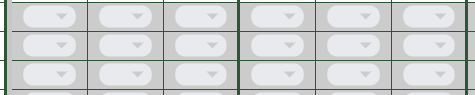
It means there are no students in those rows, so you don’t need to fill anything in. Alternatively, it means the student isn’t expected to be present i.e. they have departed or have been moved into a different group.
Q: Why is there a student with red text? Why are there red rows?
A: If the rows are red like this:

Then information about the student is not complete. Ask your TM to check your SAM sheet.
Q: Why do some of my students have different departure dates?
A: Some students may leave earlier than others (usually by only one day). Alternatively, the student has been moved to another group. In that case, you will see the Teaching Manager has changed the departure date to indicate the student is no longer in your group, and so you don’t need to mark attendance or do evaluation for that student.
Pay attention to students' departure dates as you may be asked to complete evaluation or certificate grades by your TM earlier than indicated on the SAM