Rooms checks should be carried out before the arrival of students to ensure bedrooms are ready and fit for purpose
Room checks are typically carried out by the Activity team with supervision from the AM, PM and SWO
Our guests are expecting their bedrooms to be clean, tidy, presentable and without obvious damage (as if they were arriving at a hotel). To this end, we do inspections of all bedrooms. This guide explains how to do so. ##### Procedure Overview 1. Prepare pen & paper or the notes app on your phone 2. Collect room keys from PM/AM/SWO 3. Enter the block, enter the flat you have the keys for 4. Unlock all the bedroom doors 5. For each flat: check the kitchen and check each bedroom 6. Write and photograph any damage you find, noting the flat/room number each time 7. Leave the rooms unlocked (unless your PM/AM/SWO has instructed otherwise) 8. Recount the keys in your possession before you leave the building 9. Return the keys and give your paper / send your notes to your PM/AM/SWO ##### Checking for Damage / CleanlinessA good rule of thumb is that each bedroom should look like what you would want to see when looking for a new place to live
| 📝 CHECKLIST | ⚠️ NEED REPORTING (Note & Photo) |
| ✅ Door lock works ✅ Bed is made ✅ Linen is present (towels) ✅ Main light and bedside lamp work ✅ Window open and close mechanism works IN THE BATHROOM: ✅ Toilet roll is present ✅ Shower turns on and off ✅ Toilet flushes ✅ Sink tap works/isn't dripping IN THE KITCHEN: ✅ No awful smells (empty the fridges) ✅ Bins are empty ✅ Floor and surfaces are clean | ❌ Anything you can't check off the checklist ❌ Obvious damage ❌ Missing/broken handles on drawers / wardrobes / doors ❌ Things you wouldn't be happy to see in your own room |
| **🆗 DON'T NEED REPORTING** | |
| Minor scratches on the wall akin to typical wear and tear |
If you find damage, report it! That way we have a written report and we can't be charged for damage we didn't cause
# Problems With Bedrooms Students are able to report any maintenance/cleanliness issues they have with their bedrooms via their [Student Hub](https://docs.anglo.uk.com/books/resources/page/resources "Resources"). Staff are encouraged to [do the same indicating 'STAFF' as the group leader name](https://docs.google.com/forms/d/e/1FAIpQLSdqhK04-DrZDpfQYAGI81jjjAEqnqeSatZeuziNPxgpljnnIw/viewform?usp=pp_url&entry.562748855=STAFF). Centre managers (PM/SWO) need to have problems with bedrooms reported electronically in order to communicate these problems efficiently to the host university. # Excursions # Prepare for Excursions Excursions form a major part of ANGLO programmes. They are intended to be fun and enjoyable but need to have structure and purpose so that they make sense in the context of the programme. Here we look at preparing for excursions from multiple perspectives. ##### Preparation Students Receive As part of their lessons, students learn about the places they will visit in the second lesson of each day. Care is taken to ensure students do these lessons *before* they go on the related excursion but due to timing and logistics, this isn't always possible. In these lessons students have the opportunity to share what they already know about the place they'll visit, learn basic information about the place, and also receive an 'excursion challenge', some kind of task they have to try and complete during the excursion. In the equivalent lesson the next day, students feed back to the class on the results of the challenge. Immediately prior to departure, ANGLO Leaders will brief students on the itinerary for the trip ahead including: transport, timings and safety information (see subsequent sections for more info). ##### Preparing for the Excursion (as an ANGLO Leader) 1. **Know** the destination. Check the timetable, and ask your AM/PM. 2. **Check** the method of transport with your AM/PM. 3. **Confirm** leaving **time**, return time, food instructions and entrance instructions. 1. You’ll need to know what time you are leaving and what time you are returning to campus. This will help you plan your journey times. 2. Full day excursions and some half day excursions involve a packed meal or meal out. 3. Some excursions include an entrance to a museum/attraction. The time of the entrance may be very strict so you will need to plan for this. 4. **Grab** the **itinerary** for your excursion from the [Activity Hub](https://activityhub.anglo.uk.com) 5. **Liaise** with your group leader. Normally your AM/PM will pair you with a group. It’s best to talk to the group leader directly to make sure their expectations for the excursion are understood. 1. **Modify** the itinerary as necessary in agreement with the group leader. 6. **Route planning**. If you are using public transport, plan the route you will take, and take note of it. Consult with a teammate or your AM/PM if you have any doubts. If you are travelling by coach, plan the route around the city you will be visiting. 7. **Weather**. It’s a good idea to check the weather the day before your excursion. You might want to change your clothing, and/or remind your group to bring some extra water to drink.Think: destination, route, communication, food, itinerary, safety, weather
The [Activity Hub](https://activityhub.anglo.uk.com) hosts a wealth of information and resources for all excursions
##### Preparing Yourself for the Excursion 1. Make sure you're confident on the itinerary (ask a colleague or manager if not) 2. Have you got a booking reference number if there is an entrance to an attraction? 3. Have you got a specific train (or bus) to catch? 4. Have you got a water bottle for yourself? 5. Have you got appropriate shoes (no sliders/flip-flops) and jacket/raincoat? (Weather dependent) ##### Before Leaving Campus - Before you leave campus with your group (regardless of your transport method), make sure you’re ready - You've done all the steps in [Preparing for the Excursion](#bkmrk-preparing-for-the-ex) - You've done all the steps in [Preparing Yourself for the Excursion](#bkmrk-preparing-yourself-f) - You know how many students and group leaders you are accompanying - Meet your group, introduce yourself to the group leader and group (if you don’t know them already) - Double check the number of people matches the information you have been given by your PM - Make sure everybody knows the immediate plan e.g. get on coach number 1, or catch the tube to x station - Review the [Emergency Reaction Plans](https://docs.anglo.uk.com/books/safety-youmatter/page/emergency-reaction-plans "Emergency Reaction Plans"), in particular: - Make sure that students know if they are separated from their group on public transport, they must get off the train at the next station and wait (or if they fail to get on the train they should wait on the platform)👀 TOP TIP: Shout a big hello to get your students’ attention and introduce yourself. You can then ask them to repeat any instructions to check comprehension: e.g. “Where are we getting off the train?”
# During Excursions ##### On the Tube / Train Before you board the train, make sure everybody knows which station to get off at. When the train arrives for you to get on, get on last, ensuring all students and group leaders are on board. When trains are busy, it can be difficult to get everybody onto the same carriage - this is why it’s essential everybody knows where to alight. During the journey, chat to the students to build their enthusiasm for the excursion. When you alight, ensure everybody has got off the train before you. Get off last.On public transport, our students will be mixing with the general public. It’s important to keep an eye out as some people can be a little unfriendly towards people speaking other languages.
Getting on: Inform, allow to board, board, count, interact, monitor. Getting off: Inform, allow to alight, alight, count.
##### On the Coach Before boarding the coach, check students have their packed meal (if applicable). As students board, remind them to put their seatbelts on. Perform a head count to make sure everybody is present. As the journey starts, you might like to make an announcement to everybody (with the driver’s permission) to remind them of their destination, not to leave litter on the coach, and the estimated time of arrival.Check that seatbelts are fastened. Students are not allowed to stand up during the journey.
On arrival, make sure that students have taken all their belongings with them (usually the coach will not remain parked so it can’t be accessed until pickup time), including any rubbish. ##### On the Public Bus Before you board the bus, make sure everybody knows which stop to get off at. When the bus arrives for you to get on, get on last, ensuring all students and group leaders are on board. Encourage students to sit where possible, and if any are standing, remind them to hold on tightly. When you alight, ensure everybody has got off the train before you. Get off last. ##### Meeting Points During excursions, there will be some time when the students are not moving around en masse e.g. inside a museum, at lunchtime etc. This is fine, as long as a clear, well-defined meeting point is established. Be clear about where the meeting point is and the meeting time. 👍 Examples of **good meeting points**: Next to the fountain in the middle of the square or outside the main entrance to the museum 👎 Examples of **bad meeting points**: Near the McDonald’s (there are lots of McDonald’s!) or any place the students haven’t already seen ##### What to do if...Consult the [Emergency Reaction Plans](https://docs.anglo.uk.com/books/safety-youmatter/page/emergency-reaction-plans "Emergency Reaction Plans") for a list of procedures for different emergency situations
Remember students they have an emergency contact number on their student card (in the plastic wallet of their lanyard), which they can use if necessary.
| Situation | Details | Action to Take |
| A student is late... | For the coach in the morning | Get everybody else on the coach. Go to the accommodation block to find the student - everybody is waiting for them |
| For the meeting point during the excursion | 1. Liaise with the group leader to contact the student 2. Stay with the main group unless you need to go and help the missing student return to the group - the group leader stays with the rest 3. If more than 30 minutes have passed and contact can’t be made with the student, inform your line manager 4. Whatever happens, don’t leave a group of students alone - either you or the group leader should stay with them | |
| A student gets lost... | On public transport | See below: A student fails to get on/off the train with the group |
| During an excursion | 1. As soon as you’re alerted to a missing student, speak to the group leader. 2. Usually, the student will be reachable by phone. Try to locate them. 3. If the student knows where they are but not how to rejoin their group, tell them to stay put. 4. The group leader remains with the majority, and you go and find the student and bring them back to the group. 5. If at any point you are unsure what to do or are worried about missing a transport connection, contact your AM/PM. | |
| A student fails to get on/off the train/tube with the rest of the group | 1. Try to remind those students to get off the train at the next stop (or wait on the platform if they missed the train) via their friends/group leader. 2. Instruct the group leader to remain with the group, establishing a later meeting point between you and them 3. You go and locate the student(s) and bring them back to the group | |
| A group leader wants to change the excursion itinerary | During the excursion | This may happen and it is fine as long as: - You don’t miss any paid entrances - You don’t miss any transport connections - It is safe If you're in any doubt, contact your AM/PM |
Staff and groups get packed meals for some excursions. Everybody gets packed lunches at weekends in most centres, and some groups get packed meals on arrival/departure
Packed meal distribution is usually carried out by the Activity team with supervision from the AM, PM and SWO
##### Procedure Overview 1. Collect a list of groups from your AM/PM/SWO. This will tell you how many meals are required for each group 2. Take spare paper and a marker so you can label meals 3. Collect trolley/trays of packed meals from the canteen (ensure the total matches what you expect) 4. Transport the trolley/trays to the distribution area (ask your AM/PM/SWO if you’re not sure where this is) 5. Set aside packed meals for people with special dietary requirements - these should be labelled as such 6. Count the paper bags into the right amounts for each group (taking into account the different types of sandwiches - ensure a fairly even distribution). Make sure to set aside packed meals for staff too 7. Label each group clearly so when the group leader comes to collect, you know which is the right pile of bags 8. Give the group leader their packed meals.⚠️ Don’t give packed meals to unaccompanied students 9. Clear up the distribution area of any paper/empty bags etcAll special dietary requirements must be clearly indicated on the groups list. In case of any doubt regarding allergies/intolerances, consult the AM/PM/SWO and liaise with the relevant group leader
The groups list must also include staff as a group - at weekends residential teachers and those on time off may not be present in the canteen to collect their packed lunch in person
The overview above will be different for arrival; likely the AM/PM/SWO will ask for packed meals to be placed in fridges in the students' flats
The overview above will be different for departure; likely the AM/PM/SWO will ask for packed meals to be distributed at the coach pick up point
##### Dietary Requirement Abbreviations V = Vegetarian Vn = Vegan LF = Lactose free GF = Gluten free H = Halal # Meal DutiesMeal Duties are normally carried out by the Activity team with supervision from the AM, PM and SWO
The canteen is one of the busiest locations on campus and requires good organisation and staff presence to ensure the smooth running of mealtimes (breakfast, lunch, and dinner). Staff on meal duty play a vital role in ensuring a positive experience for all students during these times; here's how to carry out your meal duty effectively.In all canteens, dishes should be clearly labelled so as to easily identify what is in the dish e.g. if it contains meat, or if it is halal/kosher
Students, staff and group leaders are issued with 'allergen cards' so they may easily explain to catering staff what they can/cannot eat (in some campuses, the university provides these cards). These should be carried in the plastic wallet attached to the lanyard
##### Procedure Overview Confirm the meal times and the designated dining area(s) with the AM/PM/SWO. Be punctual and ready to assist as students arrive. The duty consists of: **Crowd Control and Queue Management** - Position yourself strategically to help manage the flow of students entering the dining area. - Encourage students to form orderly queues and move through in a calm and respectful manner. - Be visible and approachable to address any congestion or minor disruptions. **Tray Clearing Assistance** - Monitor the designated tray disposal areas. - Encourage students to clear their own trays after finishing their meals and keep an eye out for students leaving their trays on the dining tables. - Offer gentle reminders and assistance to students who may need help understanding the process. - Ensure the tray disposal areas remain tidy and organised. **Support for Students with Lower Levels of English** - Be patient and use clear, simple language when communicating with students who have limited English proficiency. - Utilise visual cues or gestures to explain instructions regarding queueing, tray disposal, or accessing different food options. - Direct students to another staff member or speak to their GL if you are unable to understand their needs. **Ensuring Proper Eating and Addressing Meal Issues** - Circulate through the dining area to observe if students are eating adequately. - Be attentive to students who may seem hesitant to eat or are experiencing difficulties with their meal. - Encourage students to try different foods and ensure they are consuming a balanced meal (for many students this will be their first experience of ‘British’ food and may be resistant or hesitant to try it). - If a student has a problem with their meal (e.g., it's incorrect or there's an issue with quality or quantity), listen to their concern calmly and seek to resolve the issue with the appropriate catering staff immediately. **Dietary Requirements** - Be aware of students with special dietary requirements, including allergies, intolerances, halal, kosher, and others. Your AM/SWO/PM will provide you with this information. - Familiarise yourself with how these meals are typically identified or distributed in the canteen. - If a student with a dietary requirement seems to have received the wrong meal, intervene and ensure they receive the correct one by liaising with the catering staff. - Be vigilant to prevent cross-contamination if students suffer from allergies or intolerances and require a separate meal (e.g. celiac disease or nut allergies). - **Be mindful that some students may unintentionally select food that does not meet their dietary requirements** (e.g., halal students accidentally taking pork products). Observe students, and if you notice a potential issue, discreetly intervene to offer support and help them find a suitable alternative. Alert catering staff if necessary. ##### Important Considerations - Maintain a positive and encouraging attitude to create a pleasant dining environment. - Work collaboratively with the canteen staff and communicate in a polite and professional manner. - Work collaboratively with other staff members on meal duty to ensure comprehensive coverage of the dining area. - Be proactive in identifying and addressing potential issues before they escalate. - If you are unsure about how to handle a situation, don't hesitate to ask a more senior staff member (e.g., your AM/SWO/PM) for guidance. - Report any significant issues or concerns to your AM/PM after the meal duty. - Neither you nor the canteen staff are responsible for clearing students’ trays. Ensure students clear up after themselves to allow for other students to sit at the dining tables when they have finished. ##### AM/PM/SWO Responsibilities - Clearly communicate the meal duty schedule and locations to all staff members. - Provide staff with a list of students and their known dietary requirements where necessary. - Inform staff about the process for identifying and distributing special dietary meals. - Brief staff on any specific instructions or concerns related to mealtimes. - Ensure there is adequate staff coverage for each meal duty period (allocate each staff member a specific area/role within the canteen). # Group Arrivals # Check-InWelcoming and checking groups of students into their rooms is an important start to their stay
We’ll guide you through the welcome and check in process to make sure groups are treated fairly and receive the service they expect. (Note that depending on circumstances - e.g. a late flight - your PM/AM may give you instructions that supersede this guide.) First impressions are crucial! ##### Procedure Overview 1. Track the group's flight from landing time. Managers inform the team when the group leaves the airport in order to calculate their ETA to campus 2. Be ready to greet the groups at the coach drop off point to introduce yourselves to the students and group leaders 3. Assist with unloading luggage 4. Check the coach interior for dropped/forgotten items (phones, documents, bags etc) and for cleanliness 5. Move groups to the front door of their accommodation building 6. Give a speech to the whole group: Welcome to the centre, the name of the building. Explain that students must wear their lanyards at all times, that emergency number is on the student card - Explain the student card to the students: ★ Emergency Reaction Plans are written out (explain what to do if they hear the fire alarm) ★ The rules (highlight ‘no bullying’ and ‘listen to instructions carefully’ ★ The emergency phone numbers are written on their card already - Ask students to complete the following information when they get to their bedroom: ★ Their Hall name (name of their building), their Group Leader name, room number and phone number ★ Any other missing information, they should ask their group leader, or their teacher on their first day of class (the next day) 7. Explain fire safety and evacuation procedures (these are written on notices in the entrance and in the corridors of the building). Ensure you mention: evacuate calmly if you hear the fire alarm, the meeting point indicated.Please ensure you have gone over all the rules mentioned above before distributing keys - this will ensure you have everyone’s full attention
8. Explain with a visual demonstration how to use the keys you are about to give them 9. Distribute keys in agreement with the group leader (the leader will usually have a prepared list of names and rooms. If in doubt, consult your Programme Manager) 10. Bring students into the building in flat groups. In the event of needing to use lifts for luggage: bags go in the lift, students go via the stairs (where possible) 11. Ensure students are able to open their doors, find light switches, and know they must have their key on their lanyard around their neck whenever they leave their room 12. Show at least one student the communal kitchen - drinking water is available here 13. Arrange next meeting point/time with group leader (either for first meal or campus tour) ##### Checklist for Check-In Make sure groups are able to access their rooms, and give them information about what to do next| 📃 CHECK-IN CHECKLIST |
| ✅ Team is ready to meet coach(es) at coach drop off point ✅ Welcome the group and assist with luggage / check coach is empty of personal items ✅ Explain how lanyards and keys work outside accommodation block ✅ Explain fire procedure, no bullying rules, complete missing information on student card ✅ Distribute keys/lanyards/student cards ✅ Ensure students can all enter their bedrooms ✅ Point out kitchen/communal area and access to drinking water ✅ Ensure group leader knows when/where next meeting point is |
Most universities have green labels denoting drinking water. Rule of thumb is bedroom taps are not great quality, kitchen taps offer drinking water. Check with the accommodation office.
# Campus ToursAll groups need an orientation shortly after arrival to ensure students and Group Leaders can navigate around the key sites on campus
Campus Tours are usually lead by the Activity team with supervision from the AM, PM and SWO
Imagine you’ve just arrived at a university you’ve never been to before. You’d appreciate someone showing you around, right? Well, the same goes for our groups. The exact order of the campus tour you give will depend on the university you are based at, so the Activity Manager and Programme Manager will help you design the tour. This guide gives you the main outline of how to organise a campus tour. ##### Procedure Overview 1. Meet the group at accommodation to begin the tour 2. Ensure the group are all wearing their lanyards, have their room keys/card, and know about their student card inside the plastic wallet on their lanyard (their student card gives them essential information about where they are staying) 3. Inform students they are about to embark on their campus tour. Remind them that they can access a map and campus information on the Student Hub for their centre 4. Lead the campus tour, explaining necessary information clearly and carefully. Ask meaning check questions\* to ensure comprehension 5. Point out fire assembly points for accommodation, canteen and classroom buildings 6. Finish the tour by accompanying the group to an appropriate location (ask your line manager where), which could be: accommodation, the canteen, or an evening activity location (depending on the time of day) > Meaning check questions = For example: “Dinner starts at 6 o’clock so you must be punctual” “What time does dinner start?” ##### Checklist for Campus Tours| 📃 CAMPUS TOUR VISIT CHECKLIST 📌 |
| Students and Group Leaders must visit: ✅ Their accommodation (and know the name of their building) and fire assembly point (explain safety information (see below)) ✅ Launderette/Laundry facilities (when and how to use them) ✅ Classroom building (and signs that indicate which classrooms are ANGLO’s) ✅ Course office/teaching office ✅ Noticeboard/information area (ANGLO signs, information, noticeboard, emergency contact information) ✅ Meeting point(s) (reiterate evening activity meeting point times) ✅ Canteen (inform students of mealtimes, and check comprehension) ✅ Sports centre / Swimming pool (if applicable) |
| 📃 CAMPUS TOUR SAFETY CHECKLIST 🦺 |
| Student and Group Leaders must learn about: **✅ Fire safety information** and where to find it (in the entrance to their accommodation) **✅ Emergency Reaction Plans** (on Student Hubs, in Group Leader Welcome Packs and in the entrance to accommodation) ✅ **Road Safety information** (on Student Hubs and in the entrance to accommodation) |
Welcome Presentations are held en masse, on each arrival day. They serve as a welcome to all the students, in which students will learn key information about the ANGLO centre they are staying at, the names of the staff, and vital safety information. These presentations are made by ANGLO and can be accessed by managers.
##### Procedure Overview Presentations are held in lecture theatres or similar large rooms, where there is enough space for all students to be seated and see the screen where the Welcome Presentation is being displayed. In addition to the ANGLO Welcome Presentation, it is customary for staff members who are on duty to be present to introduce themselves. Usually the PM leads the presentation but other managers can also do so.Welcome Presentations must be held the same day that students arrive, or, in the case of late arrivals, the following morning
##### Topics to Cover The ANGLO Welcome Presentation covers the following topics which must be highlighted by the person/people leading the presentations: - Welcome to the centre - Name, contact information of the management team: - PM, AM, SWO, DSP (Designated Safeguarding Person), TM, WTS - Introduction of the ANGLO Leaders and their role - Introduction of Teachers and their role - Campus Rules - [Emergency Reaction Plans](https://docs.anglo.uk.com/books/safety-youmatter/page/emergency-reaction-plans "Emergency Reaction Plans") - Who to talk to in case of problems and the photo and details of ANGLO's DSL (Designated Safeguarding Lead) - [Student Hub](https://docs.anglo.uk.com/books/resources/page/resources "Resources") information and access instructions # Noticeboard # Build a Noticeboard The noticeboard is the students' way to see what is happening at their centre; where they're supposed to be and when. #### Position of the Noticeboard - The noticeboard should be located in a place where the students often frequent e.g. foyer of classroom building, entrance to the canteen - It should be placed in a safe and secure place i.e. locked overnight, safe from wind, not easily knocked over #### Building the Noticeboard Each noticeboard will have a clip in the groove on the side of the board. To assemble the noticeboard: - unfold the 3 boards which are fastened together - place the boards on top of each other, aligning the clips on top to the space below - apply a gentle amount of pressure to the top of the boards to attach the top and bottom together # Use a Noticeboard The Noticeboard must be updated daily so that students are informed about what they are doing, when and where they need to do it. The notice board should contain the following information: - Daily timetable for Group A and Group B, breaking down what each day's morning, afternoon and evening excursion and activities will be - Student Lists for each class and workshops - Emergency Reaction Plans and DSP posters - Sign up sheets for activities Notice boards should have the time table updated every day first thing in the morning to reflect the current day's schedule. They should be updated by an ANGLO Leader with the noticeboard signage which has been provided. Student lists should be replaced at the start of every turn and then updated as the turn continues to reflect any changes. Activity Managers should check the notice board once a day to make sure it reflects the correct information for the day. If the centre is missing any notice board signs or the board becomes damaged, ask your line manager to contactThe Noticeboard box has all the signs for the Noticeboard, and pins for attaching the signs
Pins don't need to go through the laminated signs!
Only use dry-wipe pens on laminated signs. Foam signs must have additional information bluetacked to them
# Student Resources # List of Student Resources All students on ANGLO courses receive the following on or shortly after arrival: 1. 1 x ANGLO student card 2. 1 x ANGLO lanyard 3. 1 x ANGLO notebook 4. 1 x ANGLO pen 5. Access to the [Student Hub](https://docs.anglo.uk.com/link/8#bkmrk-for-students) #### ANGLO Student Card #### ANGLO Lanyard #### ANGLO Notebook #### ANGLO PenCheck out the [Welcome Packs](https://docs.anglo.uk.com/books/how-to-guides/page/welcome-packs "Welcome Packs") guide for more information on how to prepare and distribute student resources
# Welcome PacksWhen groups arrive, group leaders need an information pack, and students need to be able to be identified. To achieve this, we prepare a Welcome Pack
The Activity team is usually tasked with preparing Welcome Packs, overseen by the PM/SWO
##### Group Leader Welcome Pack Contents 1. Copy of the programme (print from Centre Info) 2. Welcome letter (found in shared drive > 03 Centre Team > Welcome Pack) 3. Campus map (paper copies available, digital version on Student Hub) 4. List of A and B groups (template found in shared drive > 03 Centre Team > Welcome Pack) 5. QR code and web address for Student Hub (shared drive > 03 Centre Team > Welcome Pack) 6. Master key for their students’ bedrooms/flats (where possible, depends on each university)Note that only Managers have access to the shared drives
##### Group Leader Kit Contents Group Leaders should also receive a lanyard, plastic wallet with their completed ID badge inside. ##### Student Kit Contents All students must be given: - ANGLO Lanyard Attached to the lanyard: - ➢ Plastic wallet - ■ Completed Student card\* (complete by Activity Team): - ★ Centre Emergency number (found on Student Hub) - ★ Campus Security number (found on Student Hub) - ★ ANGLO 24/7 Safeguarding number (+44 7741 575 158) - ★ Programme Manager’s name - ★ Teaching Manager’s name - ★ Activity Manager/DSP’s name - ★ Centre Address incl. postcode (found on Student Hub) - ★ Hall/Block name (if possible) - ★ Group Leader’s name (if possible) - ■ (Optionally, use red and green highlighters to indicate group A and group B) - ➢ Bedroom key(s)/keycardStudents must be shown their student card during [check in](https://docs.anglo.uk.com/books/how-to-guides/page/check-in "Check-In"), in order for them to understand what information is on it, and therefore where to find essential contact information. (Students also receive a visual explanation of the card during the Welcome Presentation)
# Teaching # Observations Teachers will have a full lesson observation near the beginning of their time with ANGLO with the possibility of a drop-in observation later in the course. #### Full Observations ##### Procedure 1. TM produces a Lesson Observation Rota at least 3 days before the first full observation and makes it available to the all teaching staff. 2. TM organises a pre-observation team meeting to briefly discuss the observation checklist. Teachers can suggest areas of their teaching on which they would like specific feedback. 3. The obversations take place. 4. TM writes up the observation feedback report. 5. TM follows up the observation with a brief discussion with the teacher within two working days from the observation, then completes and emails a final Teacher Observation Report to teacher and HO within 5 working days. ##### Observation Checklist An ANGLO Teacher Observation Checklist is completed by the TM for each full observation. ##### Lesson Observation Feedback Form [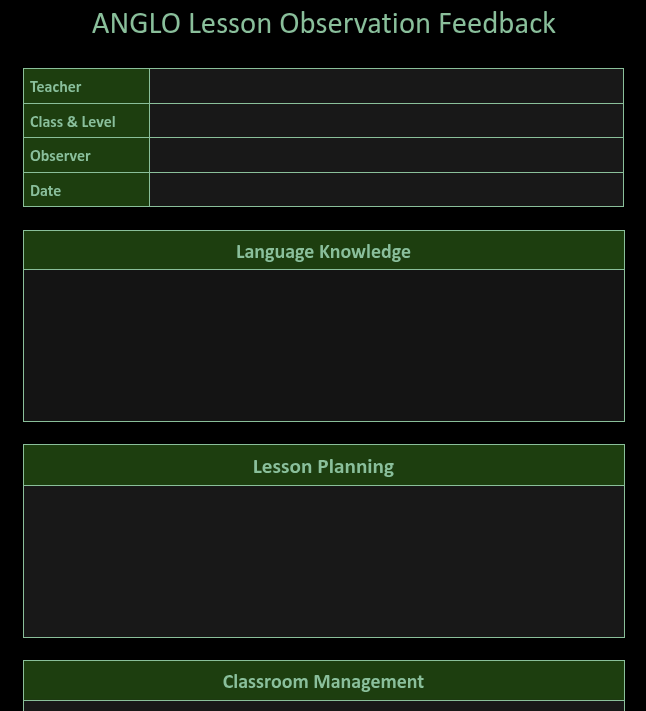](https://docs.anglo.uk.com/uploads/images/gallery/2026-06/Z7TMxsToZuk1DDxv-image.png) #### Drop-in Observations Drop-in observations are informal lesson observations. Drop-in observations take place whenever the TM deems them necessary - the TM tells teachers in advance that a drop-in observation is happening. After a drop-in observation the TM may direct teachers to the Teacher Knowledge Bank if further support is required. # Board Work Teachers must make sure there board work is always tidy and useful for the students. Essentials of board work: - Lesson outcomes: what will students have learned or improved by the end of your lesson? Teachers should explain these to their students at the beginning of the lesson, refer to them during the class then review/reflect at the end of the lesson. Learning outcomes for each lesson are listed on the first slide. - Language models: clear examples of functional language, with important language elements/patterns highlighted - New vocabulary: with parts of speech (n, v, adj, etc.), and highlighted pronunciation (stress, important phonemes) - Error correction We recommend dividing the board into clear sections, and using colours consistently throughout the course. For example: black or blue for main text, green for highlighting important language elements or patterns, and red for error correction. See below board plan: [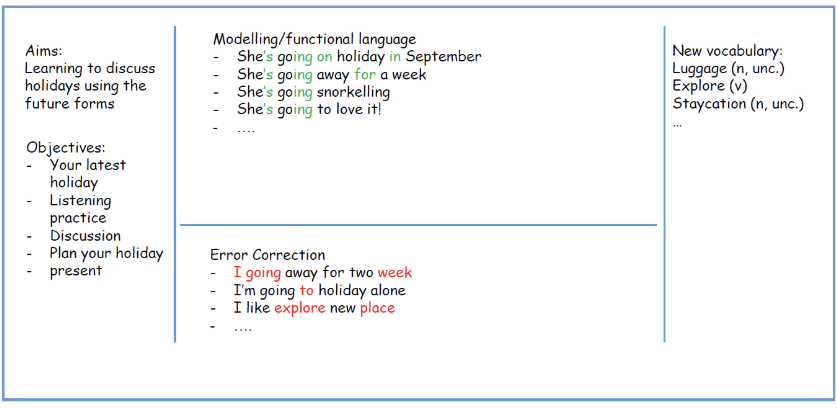](https://docs.anglo.uk.com/uploads/images/gallery/2025-12/3ZkLpLtPKSgSsj7d-image.png)There's more info on Board Work on the Teaching Hub's [Teacher's Knowledge Bank](https://teachinghub.anglo.uk.com/tkb)
# Classroom Seating In order to create the most effective learning environment for students it is important to consider seating arrangements in the classroom. Below are two possible classroom seating layouts and the types of teaching activity they work best with: [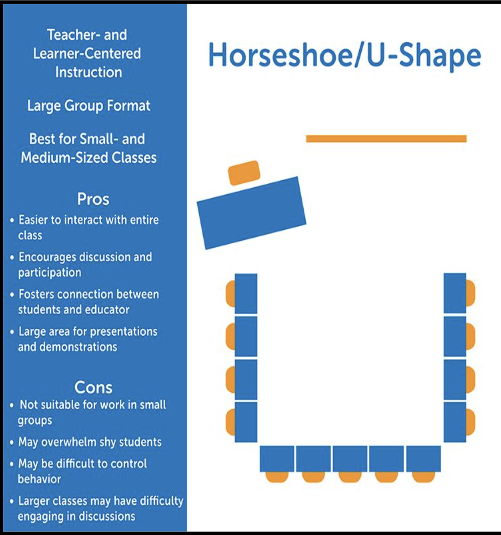](https://docs.anglo.uk.com/uploads/images/gallery/2025-12/LkIrpnPxeIh57ji9-image.png) [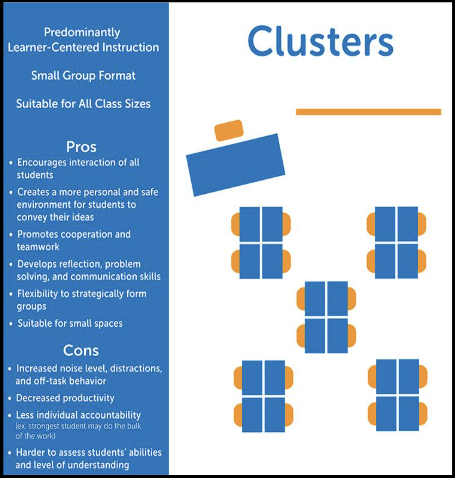](https://docs.anglo.uk.com/uploads/images/gallery/2025-12/4PzrQBcmPN7OtPfa-image.png) # Trinity GESE Exams Some ANGLO students opt to sit their spoken Trinity exams during their ANGLO programme. Teachers typically have little interaction in this process (it is handled principally by the management team).The Trinity Exam Process is detailed on the [Teaching Hub](https://teachinghub.anglo.uk.com)
# Student Feedback ANGLO collects student feedback on Programme Day 3 and at the end of the course (Course Day 7 for 13-night programmes, Course Day 8 for 14-night programmes). Day 3 feedback is used to see how students are settling in and to identify any problems they might so that these can be resolved as soon as possible. End of Course feedback is used to assess satisfaction throughout the programme and the results are used to make changes (where necessary and appropriate) for subsequent student intakes. Student feedback forms are completed in the classroom with the teacher helping students to locate the form and assisting with any comprehension difficulties. #### Procedure for Collecting Student Feedback 1. On a feedback day, teachers should bring QR code posters to their classroom (these are available in the Teaching Office from the Teaching Manager) 2. Teachers ask students to scan the QR codes on students' own devices 3. Students complete the form individually and submit their answersStudents need to complete their own form on their own device. This is important so that every student has the opportunity to give feedback
# Student Academic Management (Teachers) ## Attendance, Evaluation & Reports Guide ### **Teachers**: Filling in attendance and evaluating your studentsANGLO uses the name **SAM** for the documents that are used for **S**tudent **A**cademic **M**anagement
This guide explains how to use the ‘Student Academic Management’ (SAM) Google Sheet, a link to which your Teaching Manager will send you. This document is used to record your students’ attendance, evaluation, and class profile in one single place. #### 🔎 Overview of the SAM document Your Teaching Manager will send you a link to a SAM Google Sheet for each course you will teach: one document for group A and one document for group B for each student intake. You can easily identify this information from the title of the document, for example: `🔴 Group A Turn 1 SAM` Or `🟢 Group B Turn 2 SAM` ##### ⚙️ DASH When you open the document, you should see the ‘⚙️ DASH’ sheet. Click to view it. Here you will see the names of the various classes, the level of course material the class will follow, and the name of the teacher assigned to each class. You will also see a classroom assignment\* and a link to this document should you need to read it again. \*It is possible that classrooms have not been assigned when you first receive the link to the document. Consult your Manager. [](https://docs.anglo.uk.com/uploads/images/gallery/2026-04/LIlDhZHSZU3Zf4BX-a5144aa3-122c-44d2-8919-6ab3d4192533.png) In the example above there are groups: each one has a level, a teacher, a classroom, number of students and the age range of the students. ##### Class Sheet: Class Info You can easily identify the name of the group assigned to you. Locate your sheet at the bottom of the document. It will have the group’s name on it (in this example we are using Josh who is teaching Austen group). Click to select it: [](https://docs.anglo.uk.com/uploads/images/gallery/2026-04/oxIqmEQpjrt2j7Uv-552e4d85-37e7-48ae-8473-ce6410d32ae8.png) You'll find the main information about the class in the top left: [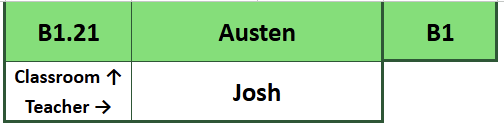](https://docs.anglo.uk.com/uploads/images/gallery/2026-04/OdEHIv8fNXFnc2Iw-image.png) Here you can see confirmation of the classroom (B1.21), group name (Austen), level (B1), group B (the green colour), and the teacher (Josh). ##### Class Sheet: Student Info Your students are located in rows 7 to 26 (depending on the number of students in your class\*) \*The maximum number of students is 15 (there is space in the register for 20. This is in case students are moved from one class to another. More on this below) For each student in your class you have their full name, group/group leader name, nationality, ID, age, level and departure date. [](https://docs.anglo.uk.com/uploads/images/gallery/2026-04/YDBIAgahNBora4v9-image.png) Since the Student Academic Management document covers 4 aspects of student management, convenient links are also placed in a prominent location. Simply hover, and click the link to be taken to the part of the sheet you are looking for.  We'll delve into more detail on each of these 4 items in the next sections. #### 🙋♂️ Attendance ℹ️ Click on the ‘🔗 Attendance’ to jump across to the 🙋♂️ Attendance section. Alternative, scrolling to the right, the first section next to your students' names is the Attendance section. For each day of the course you need to complete the attendance for each of the 3 lessons. Fill in the attendance for each learning session with a 'P' for present, a 'L' for late or an 'A' for absent. Inform your TM 10 minutes into class if you have any absent students. [](https://docs.anglo.uk.com/uploads/images/gallery/2026-04/DJjf4hmUXn5gBQ9B-image.png)Inform your TM 10 minutes after the class begins if you have any absent students
Each day is marked with the date, and any other tasks to be completed on that day. In the example below, today is Wednesday 15th April and the attendance for that day needs to be taken, as well as completing the Class Profile. [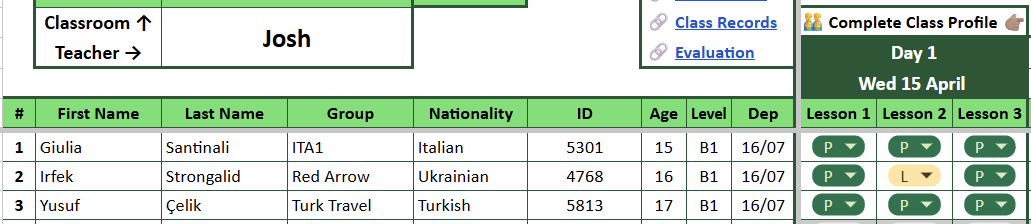](https://docs.anglo.uk.com/uploads/images/gallery/2026-04/RNtBexpZb1kAXXDI-image.png) #### 👨👨👦👦 Class Profile ℹ️ Click on the ‘🔗 Class Profile’ to jump across to the 👨👨👦👦 Class Profile section. The Class Profile needs to be completed on Day 1, using the Needs Analysis and your own observations. It needs to be reviewed on Day 3 (and changed if necessary). [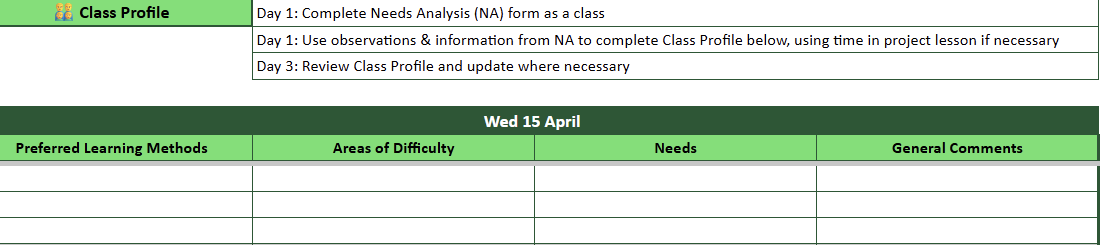](https://docs.anglo.uk.com/uploads/images/gallery/2026-04/eywk9W7GdymxlQ7X-image.png) #### 📝 Class Records ℹ️ Click on the ‘🔗 Class Records’ to jump across to the 📝 Class Records section. At the end of the 3rd lesson each day, fill in the Class Records (rows 29-32) with information about what you have covered in class. [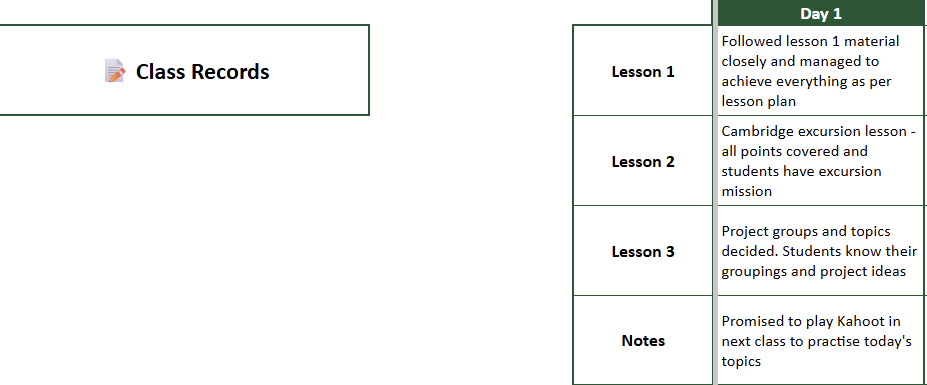](https://docs.anglo.uk.com/uploads/images/gallery/2026-04/2HXIWBBd0EF2zTQU-image.png)Class Records are a great reminder for yourself and are really beneficial if another teacher has to cover your class
#### 📋 Evaluation ℹ️ Click on the ‘🔗 Evaluation’ to jump across to the 📋 Evaluation section. On day 4 and day 8, complete the progress report for your class. Enter the test result out of 10, then assign Excellent, Good or Needs Improvement for each of the areas indicated. Finally, leave your comments. [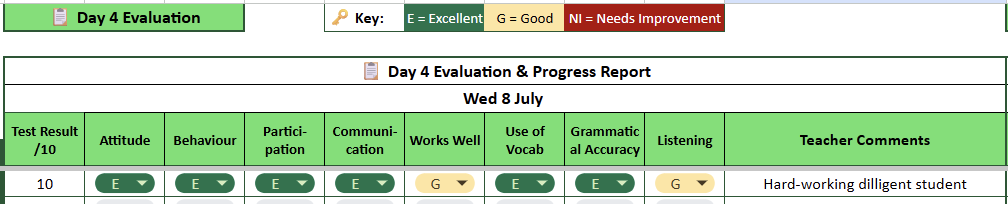](https://docs.anglo.uk.com/uploads/images/gallery/2026-04/jzDjuPb0eq9jx7cz-image.png) The image above shows the Day 4 Evaluation section but the Day 8 one is identical.The cell space for leaving comments is really small. TIP: Select the comments cell with your mouse, then type in the formula bar towards the top of the screen.
#### 📜 Certificate Grades On Day 5 the SAM will indicate to you that it's time to indicate students' certificate grades [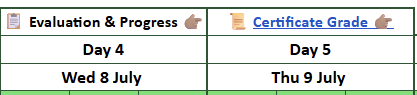](https://docs.anglo.uk.com/uploads/images/gallery/2026-04/YvwfuMkOZKy3bDv1-image.png) Click the Certificate Grade link or scroll to the right side of the SAM. Enter P (Pass), M (Merit), D (Distinction) for each student.TIP: When a Certificate Grade cell is selected, press Return on your keyboard. You can then use the arrow keys to select P, M or D. Press Return again to make the selection and automatically move to the cell (student) below,
#### 🆘 Help! (FAQs)Pay attention to students' departure dates as you may be asked to complete evaluation or certificate grades by your TM earlier than indicated on the SAM
Signs can be affixed with blu-tak, cable ties or in display cases
Be sure to affix signs in such a way that they do not obscure university logos, signs, notices
Affix signs in a way that is appropriate for the location: e.g. blu-tak is not appropriate for signs displayed outside. Equally, do not use blu-tak on walls where it may damage the paint
ANGLO provides each centre with cable ties, blu-tak, magic whiteboard roll, as well as all the signs grouped by type
# Open & Close Centre # Set Up Centre Before the first groups of students arrive for the first student programme, the university campus where the ANGLO centre is based will be empty! In this guide we explore the steps to take to get an ANGLO centre up and running and ready to deliver the programme. #### Setup Tasks - Set up [ANGLO Course Office](#bkmrk-set-up-course-office) - Set up [ANGLO Teaching Office](#bkmrk-set-up-teaching-offi) - Put up [ANGLO signage](#bkmrk-put-up-signage) around the campus #### Set Up Course Office - Set up desks, tables and chairs - Set up printer - Attach office posters/signs to walls - Organise sports equipment - Organise student resources - Prepare whiteboards with key information #### Set Up Teaching Office - Set up desks, tables and chairs - Set up printer - Attach office posters/signs to walls - Organise student resources - Organise teacher boxes - Prepare whiteboards with key information #### Put Up Signage Please refer to the [Signs](https://docs.anglo.uk.com/books/how-to-guides/page/signs "Signs") guide # Close Centre After the last groups of students have gone home from their student programme, the university campus where the ANGLO centre is situated needs to be packed and ready for collection by Head Office! In this guide we explore the steps to take to get an ANGLO centre packed and ready to be collected. #### Pack Up Tasks - [Dispose](#bkmrk-disposal-of-broken%2Fd) of any broken or damaged items. - Pack up [ANGLO Course Office](#bkmrk-set-up-course-office) - Pack up [ANGLO Teaching Office](#bkmrk-set-up-teaching-offi) - Pack up [ANGLO signage](#bkmrk-put-up-signage) from around the campus - Pack up [Devices ](#bkmrk-devices%C2%A0) #### Disposal of Broken/Damaged Items You only need to return items to head office that can be used in subsequent years. If you have items that are damaged or broken these can be disposed of rather than returned. Damaged items include: - Partly used student books - Pens without lids - Broken sports equipment - Electronics that no longer work Use the [Distribution and Inventory](https://docs.anglo.uk.com/books/key-documents/page/distribution-inventory) sheet to add notes by items that are not being returned and are no longer usable. If you are able, dispose of broken items before packing up. If disposal is not possible at your centre, please create a box clearly labelled "for disposal" so that Head Office can dispose of it for you. #### Pack Up Course Office - Return desks, tables and chairs to how they were when the centre was set up - Pack up printer - Take down office posters/signs from walls - Organise sports equipment into the Sports Box - Organise office resources into the Course Office Box - Organise activity resources into the Activities Box - Organise any remaining resources into a box and label appropriately - Clean whiteboards - Update [Distribution & Inventory](https://docs.anglo.uk.com/books/key-documents/page/distribution-inventory) #### Pack Up Teaching Office - Return desks, tables and chairs to how they were when the centre was set up - Pack up printer - Take down office posters/signs from walls - Organise any remaining student resources into a box and label appropriately - Organise teacher boxes into a stack, please separate items by type. - Clean whiteboards - Update [Distribution & Inventory](https://docs.anglo.uk.com/books/key-documents/page/distribution-inventory) #### Pack Up Signage - Take down navigational signs from around campus and return to the Campus Directional Signs Wallet - Add the course office and teaching signs to the Course Signs Wallet - Store the noticeboard signs in the Noticeboard Box - Take down the campus signs from accommodation and teaching blocks and add to the Campus Signs Wallet - Pack banner stands and flags into their bags - Take down the vinyl banner and return it to the Course Office Box - Update [Distribution & Inventory](https://docs.anglo.uk.com/books/key-documents/page/distribution-inventory) Please refer to the [Signs](https://docs.anglo.uk.com/books/how-to-guides/page/signs "Signs") guide for descriptions of the types of sign around campus. #### Devices - Pack all cables and devices in their appropriate boxes or bags - Ensure sufficient care is taken with these items during pick up to prevent damage. - Update [Distribution & Inventory](https://docs.anglo.uk.com/books/key-documents/page/distribution-inventory) with the location of these items. # Workshops # Prepare for WorkshopsThis page provides an overview of ANGLO Workshops. For guidance and materials on leading Workshops, [see here](https://docs.anglo.uk.com/books/how-to-guides/page/lead-workshops "Lead Workshops").
##### What are ANGLO Workshops? Check out our video: ANGLO Workshops are a type of session that all students do in all ANGLO centres. For 13 and 14-night programmes, students do two Workshops. The Workshops are the same across all centres. Each Workshop takes place in a 4-hour session, usually in the morning. Workshops are designed to allow students to practise their spoken English in a natural way, outside the classroom, and to use their creativity to make and present something at the end of the Workshop session. ANGLO Workshops change each year so that students and staff who do more than one ANGLO programme don't repeat the materials and have a unique experience each time. ##### Where do Workshops take place? Workshops take place on campus. They start in a classroom/lecture theatre for the introduction and planning stages. Then students are usually required to move around the campus to gather information or create their presentation. At the end of the session students come back to the classroom/lecture theatre to present their creation. ##### Who leads Workshops? ANGLO Workshops are lead by ANGLO Leaders under the supervision of the Workshop & Teaching Supervisor (WTS) (or Teaching Manager (TM) in the event that the centre does not have a WTS). Each ANGLO Leader is responsible for a group of up to 15 students who have a similar level of English. ##### ANGLO Workshops in 2026 **Filmmaking: Short Film Lab** - Students work in groups to choose a topic, plan, shoot, edit and present the short film to their classmates **Our Campus: People & Places** - Students work in groups to choose an aspect of their campus, carry out a piece of research and present their findings to their classmates # Lead Workshops ##### Before a WorkshopThe materials for each Workshop are found on the [Activity Hub](https://docs.anglo.uk.com/books/resources/page/resources "Resources"). Materials exist in two parts: presentation (to be shown to the students) and notes (a guide for ANGLO Leaders to follow). It's important to familiarise yourself with the Workshop material before you begin the session
The WTS holds a meeting with the ALs to go over the Workshop materials and discuss the logistics of the session. The WTS assigns each AL a group of students based on the students' class: max. 15 students of a similar English level and a similar age. The WTS gives a student list and the classroom number to each AL.Each AL leads a group of maximum 15 students, but it is possible for 2 groups of students (each with an AL) to be assigned to the same classroom if it is necessary for logistical reasons. These groups must have a similar level of English and be of a similar age
The WTS goes over the timings of each stage of the Workshop and is available to help ALs with any questions they may have. ##### Workshop Meeting Point Since Workshops only take place twice for each student in their programme, it is unlikely that students can be told which classroom/theatre they need to go to, therefore the WTS communicates a meeting point to the Group Leaders where all the students gather to be accompanied to their respective classroom by their respective AL. ALs have their student lists and can gather their students and proceed to the appropriate room to begin the Workshop. ##### Beginning a Workshop The AL takes the attendance list and any missing students are reported immediately to the WTS. The AL begins the session by introducing themself and the Workshop to the students, following the guide in the Workshop materials or as modified in the pre-Workshop meeting. ##### Throughout Workshops Some things to bear in mind throughout Workshops are: - Before any break or mission around the campus remind students about [road safety](https://docs.anglo.uk.com/books/safety-youmatter "Safety #youmatter") - Before breaks, be clear about what time to return to the Workshop session - Take the attendance list any time students return from a break or a mission around the campus - Contact the WTS if you need any support or to report student absences # Name Badges